DVSA - Earned Recognition
Introduction
Earned Recognition scheme is a program launched by the DVSA, a UK governing body. This is a voluntary program where fleets automatically provide a maintenance health check of units every 4 months via a system provider (such as EMDECS). By joining this scheme, fleets benefit by experiencing fewer audits/roadside checks, saving them time and money. For DVSA, they can shift their focus on fleets that are generally non-compliant.
KPI's
These health checks are based on 5 KPI's. M1-M3 are for Safety Inspections, M4 is for driver defects, and M5 is for MOT. See breakdown below:
(Please note there actually 9 KPI's in total - 5 for Maintenance and 4 for drivers. EMDECS only focuses on the maintenance portion)
(Please note there actually 9 KPI's in total - 5 for Maintenance and 4 for drivers. EMDECS only focuses on the maintenance portion)
M1 - M1 looks at whether a unit Safety Inspection was completed within that respective KPI period. The system looks at the Inspection Date, NOT the RO date.
Ex. A Reporting period is from Jan 5 - Feb 3. If an inspection was completed anytime within that period, it is good. If the inspection was completed Feb 4th or later, it negatively impacts M1
M2 - M2 looks at whether any safety-related defects from a Safety Inspection were raised, and whether those defects have been addressed within that KPI period
Ex. Tailights not working is tagged as a safety-related issue. If this defect was raised and repaired, all is good. If it was raised but not repaired by the end of the KPI period, it negatively impacts M2.
M3 - Similar to M1, but this is looking at whether that Safety Inspection was started and completed before the end of the ISO week (Monday - Sunday) in which it is due.
Ex. The inspection was due on Monday, September 23rd. Tech started and completed the inspection on Sunday, September 29th. Since this was done the same ISO week, it does not negatively impact KPI M3.
If the inspection was started and completed on Monday, September 30th, then it would impact the KPI.
M4 - M4 looks at whether any road safety defects from Driver Defect were raised, and whether those defects have been addressed within that KPI Period. Very similar to M2, which is looked at from a Safety Inspection perspective.
Ex. Tailights not working is raised by a driver. Since this was set up as a road safety-related issue, it will appear in the M4 drill-down. If this defect was raised but not repaired by end of the respective reporting period, it would negatively impact KPI M4.
M5 - M5 looks at the 'MOT Pass' value entered in by a manager. If set to Fail or PRS (Passed Repaired On Station), it will negatively KPI M5. Please note that in contrast to other KPI's above, the Pass/Fail/PRS values are provided by an external shop. It doesn't matter if the MOT done in-house had a lot of failed items, as long as they were all addressed before the external shop does their testing.
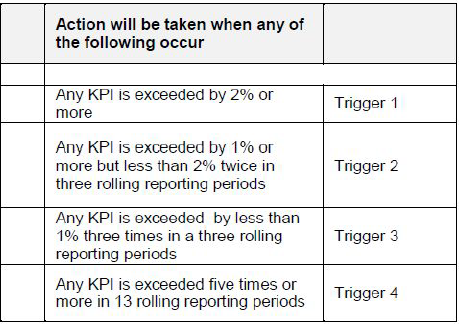
DVSA needs to be informed when a fleet’s KPI has dropped below the accepted level, known as a red trigger:
Reporting Periods and Emailing Data
Each reporting period is 4 weeks in length and based on ISO weeks. There are 13 reporting periods per year.
See this link for reference on ISO weeks -
https://www.epochconverter.com/weeks/2019
For 2022, Period 1 is for ISO Weeks 1-4 (January 3rd, 2022 to January 30th, 2022). Period 11 is for ISO weeks 41-44 (October 10th, 2022 to November 6th, 2022)
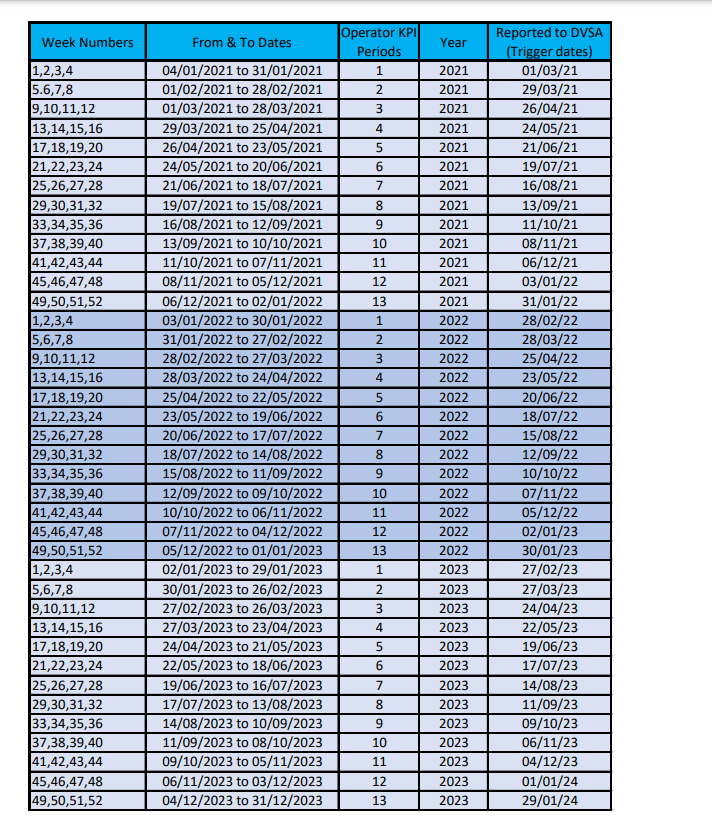
At the beginning of every new period, which falls on a Monday, the system must send an email to the DVSA for data for the period, that is two periods prior. For example, at the beginning of period 8, the system would send the email for period 6.
The system job starts after 12AM GMT time to generate these emails. If there was no red trigger, no attachment is sent and the email subject would be
[MTnil]0000-0000~p01y2019
If there was a red trigger, an attachment is sent and the email subject would be
[MTkpi]0000-0000~p01y2019. Here is a sample of that attachment -
5010-4001_p07y2019.pdf
Each reporting period is 4 weeks in length and based on ISO weeks. There are 13 reporting periods per year.
See this link for reference on ISO weeks -
https://www.epochconverter.com/weeks/2019
For 2022, Period 1 is for ISO Weeks 1-4 (January 3rd, 2022 to January 30th, 2022). Period 11 is for ISO weeks 41-44 (October 10th, 2022 to November 6th, 2022)
At the beginning of every new period, which falls on a Monday, the system must send an email to the DVSA for data for the period, that is two periods prior. For example, at the beginning of period 8, the system would send the email for period 6.
The system job starts after 12AM GMT time to generate these emails. If there was no red trigger, no attachment is sent and the email subject would be
[MTnil]0000-0000~p01y2019
If there was a red trigger, an attachment is sent and the email subject would be
[MTkpi]0000-0000~p01y2019. Here is a sample of that attachment -
5010-4001_p07y2019.pdf
Fixed PM
Please note that customers need to be on Fixed PM in order to utilize our Earned Recognition. Since Fixed PM dates for a unit are published in advance, the system can reference that table to compare when the unit was serviced (Actual Vs Scheduled) and then calculate accordingly.
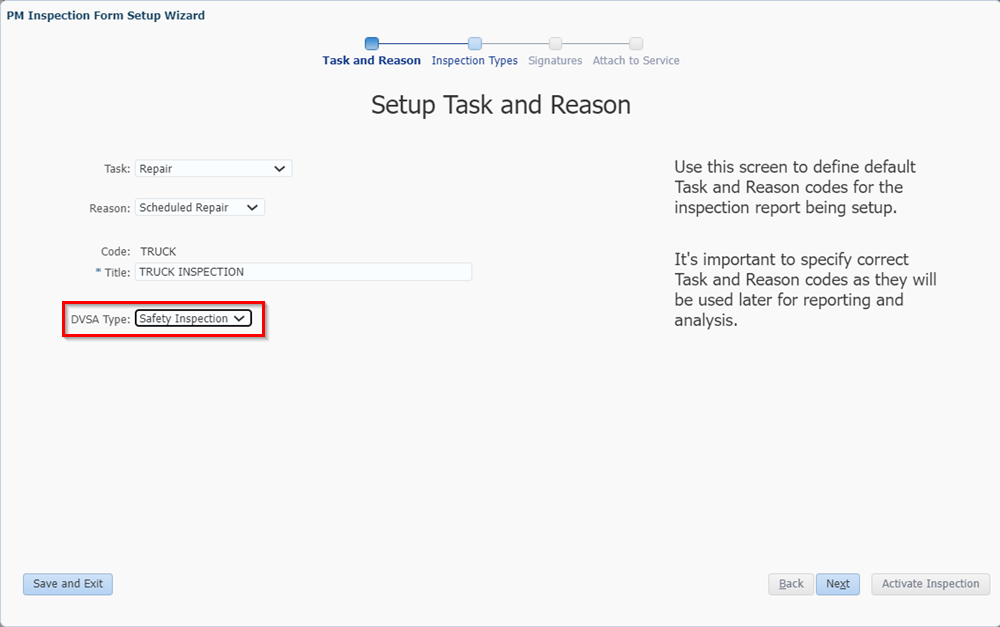
Logic will be modified for Inspections that are set to DVSA Type: Safety Inspection
If PM was done early, where the Inspection Date is at least
1 full ISO week
before it is due, shift subsequent Safety Inspections to start earlier.
Ex. Fleet's Safety Inspection Interval is every 8 weeks - Jan 1, February 26, April 23
If the fleet completed the Jan 1 inspection on December 26 instead, then count 8 weeks from December 26th and rebuild the schedule from there.
February 26 is now February 20th, and April 23rd is now April 16th, and so forth
If the PM was performed the same week is it due or late altogether, the schedule does NOT change. The goal is to maintain at least once every 8 weeks
Please note that customers need to be on Fixed PM in order to utilize our Earned Recognition. Since Fixed PM dates for a unit are published in advance, the system can reference that table to compare when the unit was serviced (Actual Vs Scheduled) and then calculate accordingly.
Logic will be modified for Inspections that are set to DVSA Type: Safety Inspection
If PM was done early, where the Inspection Date is at least
1 full ISO week
before it is due, shift subsequent Safety Inspections to start earlier.
Ex. Fleet's Safety Inspection Interval is every 8 weeks - Jan 1, February 26, April 23
If the fleet completed the Jan 1 inspection on December 26 instead, then count 8 weeks from December 26th and rebuild the schedule from there.
February 26 is now February 20th, and April 23rd is now April 16th, and so forth
If the PM was performed the same week is it due or late altogether, the schedule does NOT change. The goal is to maintain at least once every 8 weeks
Ex. Fleet's Safety Inspection Interval is every 8 weeks - Jan 1, February 26, April 23
If the fleet completed the Jan 1 inspection on December 26 instead, then count 8 weeks from December 26th and rebuild the schedule from there.
February 26 is now February 20th, and April 23rd is now April 16th, and so forth
If the PM was performed the same week is it due or late altogether, the schedule does NOT change. The goal is to maintain at least once every 8 weeks
Dashboard
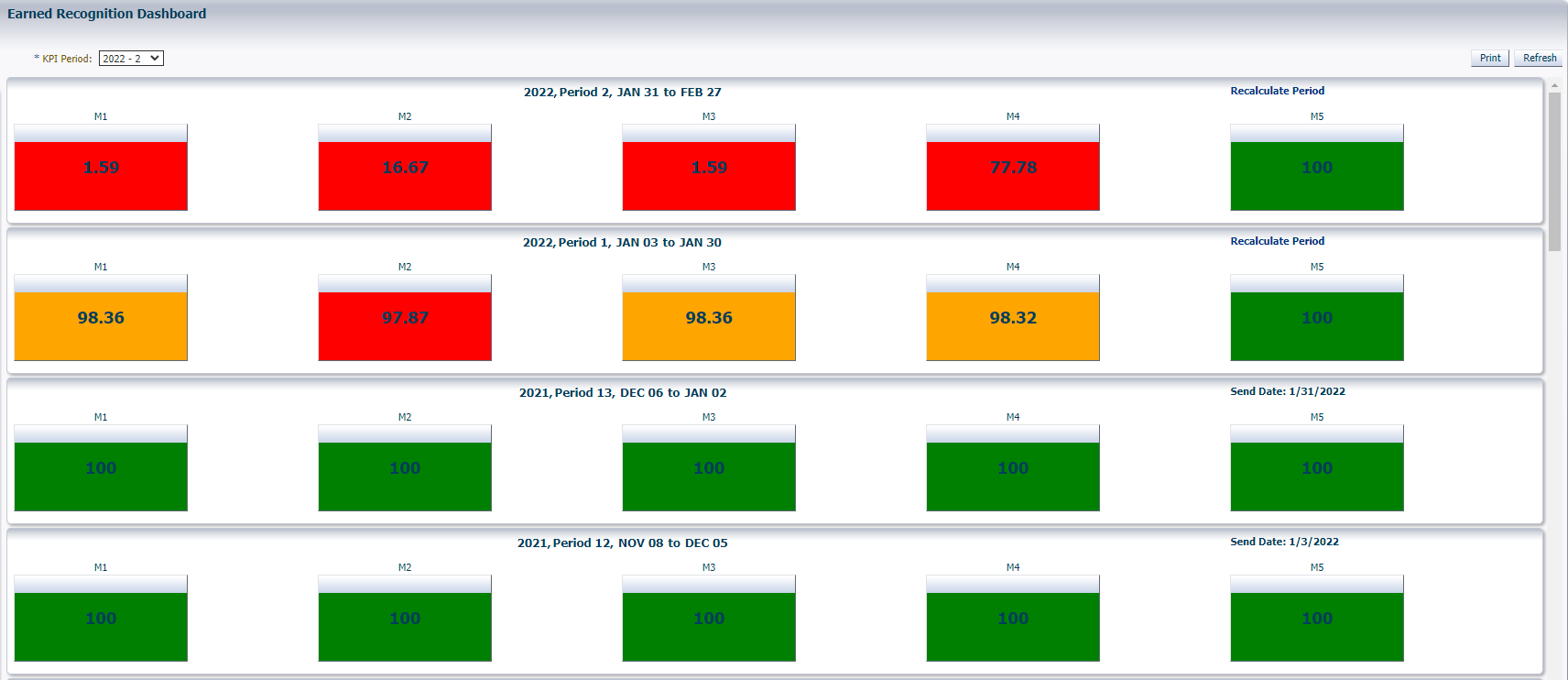
The Dashboard provides a bird eyes view and calculation for each of the 5 KPI's for that respective period.
There is a system job that runs once a day to calculate the KPI values. Any subsequent changes can be manually calculated by clicking on the Recalculate Period hyperlink for that period. Once a reporting period has been closed off and information sent over to DVSA, the data in there is locked. The user will be unable to edit values at that point for audit purposes.
To view an older KPI period, click on the KPI Period drill-down menu and make the selection.
The Dashboard provides a bird eyes view and calculation for each of the 5 KPI's for that respective period.
There is a system job that runs once a day to calculate the KPI values. Any subsequent changes can be manually calculated by clicking on the Recalculate Period hyperlink for that period. Once a reporting period has been closed off and information sent over to DVSA, the data in there is locked. The user will be unable to edit values at that point for audit purposes.
To view an older KPI period, click on the KPI Period drill-down menu and make the selection.
Clicking on the KPI for a period would bring up a drill-down view to show the line items/values of how that calculation was derived
VOR - Vehicle Off-Road Exception
Sometimes units need to be taken out of service for any reason such as an accident. Units tagged as Vehicle Off Road (VOR) are excluded from these KPI calculations as to not negatively affect them. If a unit is in an accident, it may not be feasible to perform a Safety Inspection.
To tag these units, click on VOR Exceptions under Things To Do. In the section above, enter the details for the unit.
VOR Date - Indicates when the unit was taken out of service. The system will exclude all units that are in VOR based on when the VOR date
Estimated Return - Optional field to provide an estimate of when a unit may return back to service. The system references this value to be used as a filter in a separate report to keep track.
Return / Return To Service - Indicates when the unit was placed back in service. Once returned, any KPIs after that Return Date will now be applicable again.
There is also a History tab to keep track of all VORs for audit purposes.
Set Emails
This section will display how to set Emails for various DVSA Reminders
The system has the ability for sending automated emails for the following:
Due - Sends an email with the current KPI numbers for a period X days before the period ends. The main idea is to provide the fleet manager a chance to review in advance
VOR - Sends email with a list of VOR units, so that a fleet manager can actively review the outstanding units and then return to service if units are back
ER Report - When the KPI period is closed off and ready to be sent to the DVSA, add recipients so they would see exactly the same information as the DVSA
Due - Sends an email with the current KPI numbers for a period X days before the period ends. The main idea is to provide the fleet manager a chance to review in advance
VOR - Sends email with a list of VOR units, so that a fleet manager can actively review the outstanding units and then return to service if units are back
ER Report - When the KPI period is closed off and ready to be sent to the DVSA, add recipients so they would see exactly the same information as the DVSA
Setup For a New Customer

This section requires back end set up by BrightOrder - Please reach out to our support team before attempting to implement Earned Recognition
- Go to PM Inspection Manager, select or create a new PM Inspection. In the first screen of the wizard, select Safety Inspection beside 'DVSA Type'
- In the next screen of the wizard, select all line items for the Safety Inspection that should be classified as "Road Safety". As per M2, if any of these items are failed on an inspection, they will be tracked and will negatively impact that KPI if not repaired.
- There is an option for "Monitor". This would apply to line items where the type is a Check (Pass/Fail). If selected, Monitor would be another radio button option besides Pass/Fail. Monitor items are still considered a Pass but would have their own summary section in the PDF version of the inspection. The main idea is to bring awareness to certain line items, but not enough that they would be a Fail.
- Complete the rest of the inspection the same as any other PM Inspection. Be sure to click on Activate Inspection to save/commit the changes
- Repeat Step 3 but select MOT for those respective PM's
- Go to Defect Manager, select Truck Inspection Report and then check all the applicable line items that should be classified as "Road Safety". As per M4, if any of these items are failed on an inspection, they will be tracked and will negatively impact that KPI if not repaired. Be sure to click on Activate Inspection to save/commit the changes
- Repeat Step 5 but select Trailer Inspection Report and ensure the Road Safety items are marked accordingly.
- Waiting Period - Allow the system to gather about 3 months worth of KPI data as part of enrollment. Once that time has elapsed, the export can be generated by going to Reports > Fleet > DVSAInspectionsExport Note: User can generate the export themselves if have the Earned Recognition license issued and assigned to a username
- Once DVSA has approved the fleet's enrolment, they will be provided a unique operator ID. That ID can then be entered into the system by going to Fleet > Earned Recognition and the system will prompt for that ID.
- Once ID has been submitted, the system will then display the Dashboard. Note the system will start calculating for the next full reporting period.
Related Articles
EMDECS Integration List
This article provides a list of existing services/devices that can be integrated with EMDECS. Please contact our customer experience team for more details on implementing any integration listed below. EMDECS can integrate with the following: ...PM Inspection Forms (Video)
Expand the table of contents above to skip to a specific section. Introduction This article and video provide a walk-through for creating PM Inspection Forms. PM Inspection forms can be attached to PM services for your service technicians to complete ...EMDECS System Update: November 2022
Please be advised that new system updates will be released in November 2022. No system downtime is required. The release date and time varies based on which EMDECS database / URL you use to access the system: Sign in URL: ...